
Not sure how to change your Twitch badges or upload a new custom badge set? Don’t worry, I’ve got you! 🌸
In this guide, I’ll show you how to upload and change Twitch Subscriber Badges and Bits Tier Badges through your Twitch Creator Dashboard.
If you’ve just purchased one of my badge packs, you can follow the same steps below to add your new badges to your channel. 💗
How to Change Twitch Subscriber Badges
First, head to your Twitch Creator Dashboard and make sure the side menu is open by clicking the three-bars icon (≡). Under Monetization on the menu, choose Subscriptions, then click on Subscriber Badges on the main page. You can also copy paste this link changing USERNAME by your twitch/channel username:
https://dashboard.twitch.tv/u/USERNAME/monetization/subscriptions/badges
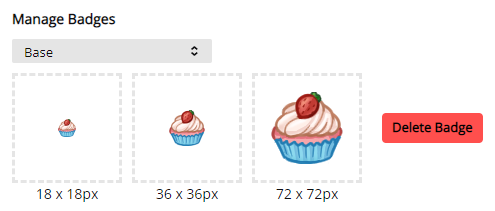
Under Manage Badges, you’ll find the option to upload your own custom Twitch subscriber badges. Twitch gives you three upload spaces for each badge: 18×18 px, 36×36 px and 72×72 px.
Start by uploading the three versions of your first badge under Base, which is the badge shown for your 1-month subscribers.
After that, use the Base dropdown menu to select and change the badges for different subscription milestones, such as 2 months, 3 months, and beyond.
Affiliates can set subscriber badges for milestones up to 1 year, while Partners can set badges for milestones up to 10 years.
How to Change Twitch Bits Badges
To change your custom Twitch Bits Badges, return to the Monetization section of your Creator Dashboard. Then go to: Bits & Cheering (menu) → Bits Tier Badges (main page). You can also copy paste this link changing USERNAME by your twitch/channel username:
https://dashboard.twitch.tv/u/USERNAME/monetization/bits-and-cheering/cheerbadges
Here, you’ll see the default Twitch badges for each Bits milestone, including 1 Bit, 100 Bits, 1000 Bits, 5000 Bits, and more.
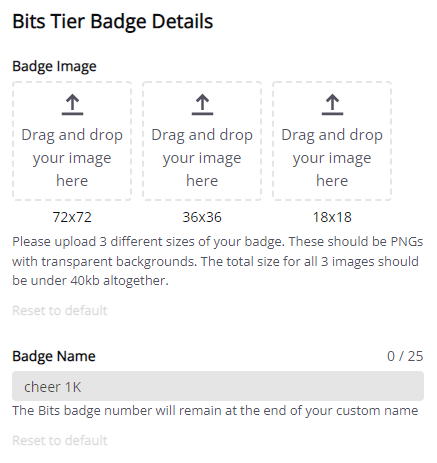
Click Edit on the badge tier you’d like to change. From there, you can upload your own custom badge artwork and choose a custom name for the badge.
Can I Upload Custom Badges to Twitch?
Yes! Twitch allows Affiliates and Partners to upload custom Subscriber Badges and Bits Tier Badges for their communities.
All of my Twitch badge packs include PNG files in the sizes required for Twitch: 18×18 px, 36×36 px, and 72×72 px, with transparent backgrounds.
So if you’ve purchased one of my badge packs, your files are already prepared for uploading. Just extract the ZIP file, follow the steps above, and choose the matching file size for each upload space.
Still Need Help?
If you’re looking for new badges for your channel tailored to your specific needs and matching the vibe and aesthetic of your channel, please take a look at the custom twitch badge commissions that I offer by clicking this link!
If you need something more affordable to start out, you can browse my collection of cute Twitch badges and find a set that fits your stream’s little world. Just click this link right here!💗
And if you’ve already purchased one of my badge packs but you’re still having trouble uploading your files, feel free to reach out to me through the contact information on my About page and I will gladly help you out!
For more detailed information about Twitch badge requirements, you can also check Twitch’s official Subscriber Badge Guidelines.
Happy streaming, and I hope your new badges make your community feel a little more like home! ✨